Table of contents 13 sections
- Who created Canva
- Canva: pros and cons
- How to use Canva
- Canva for presentations
- Canva for résumés
- Canva for mind maps
- Canva for business cards
- Canva for flyers
- Canva for brochures
- Canva and artificial intelligence
- 6 practical tips for using Canva
- Canva or PowerPoint: which should you choose?
- Canva or Prezi: which is better?
Who created Canva
Canva, the well-known design platform, was founded in Australia in 2013 by Melanie Perkins, together with Cliff Obrecht and Cameron Adams, to help everyone who needed to create graphics without any design knowledge or skills.
Canva is ideal for people who aren’t designers, graphic artists, or art directors but need to create all kinds of graphics.
Graphic designers can benefit from Canva too, because it gives them a base of ideas to start from and make their own through their expertise and creativity.
Canva: pros and cons
Canva has many advantages for people who work in marketing, communication, and design:
- it’s simple and fast to use
- it offers a huge range of options and customization
- Canva Pro, the paid version, lets you work on finer design details (if you design often, I recommend it!)
- it lets you create professional design files (brochures, flyers, business cards, reports, mind maps, presentations, social media images, and much more) without advanced design skills
- it lets you save projects and organize them in folders, so everything is archived and at hand for future edits
- it lets you download your work in different formats, such as JPEG, PNG, and PDF, to use it on whichever channels you need
As for disadvantages, I don’t think Canva really has any. For a web designer, it might limit creativity.
Let me explain: while Canva stimulates everyone’s creative side, an experienced designer may prefer to start from a blank canvas in Photoshop, without distractions or suggestions, and create something truly unique without being influenced by the extra elements on the platform.
How to use Canva
First, you can choose between Canva (free) and Canva Pro (paid). The difference lies in the type and number of assets and features available: Canva Pro is, of course, a much more complete platform with virtually no limits.
To give you an idea, at the time of writing the free version of Canva included:
- around 250,000 templates to start your design projects from
- over 1 million photos and graphics
- 5 GB of storage
- AI features that speed up your work and help in many ways (try it and see!)
Canva Pro, in addition to everything in the free version:
- includes “premium” content reserved for subscribers (for example, I often find paid graphics that are noticeably higher quality than the free ones)
- offers more storage
- includes dedicated project management and team collaboration tools
- allows full customization of your projects
How much Canva Pro costs
Canva Pro is billed per person, with monthly or annual plans, and there are also Canva Teams plans designed for groups working together. Prices vary by country and change over time, so check Canva’s pricing page for current details.
Signing up for Canva
The first step to using Canva is creating an account:
- go to the website
- click “Sign up”
- choose whether to sign up with your email, Google, Facebook, or another method
- your account is ready
Canva for presentations
One of the most common uses of Canva (and Canva Pro) is creating presentations:
- company profiles
- reports
- proposals
- quotes
- meeting recaps
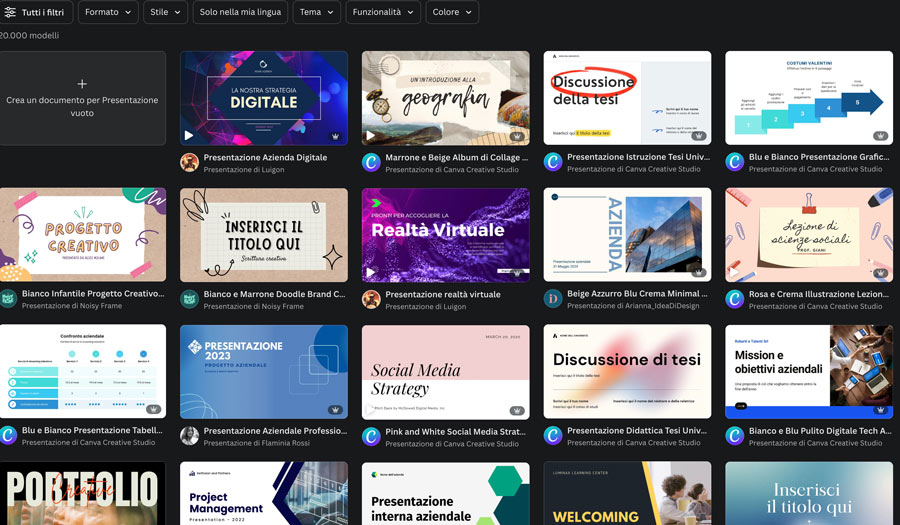
With Canva Pro, you can choose:
- format (such as 16:9)
- style (minimalist, colorful, corporate, creative, playful, and so on)
- language
- theme (business, marketing, work, etc.)
- features (animation, video, audio)
- color
Canva for résumés
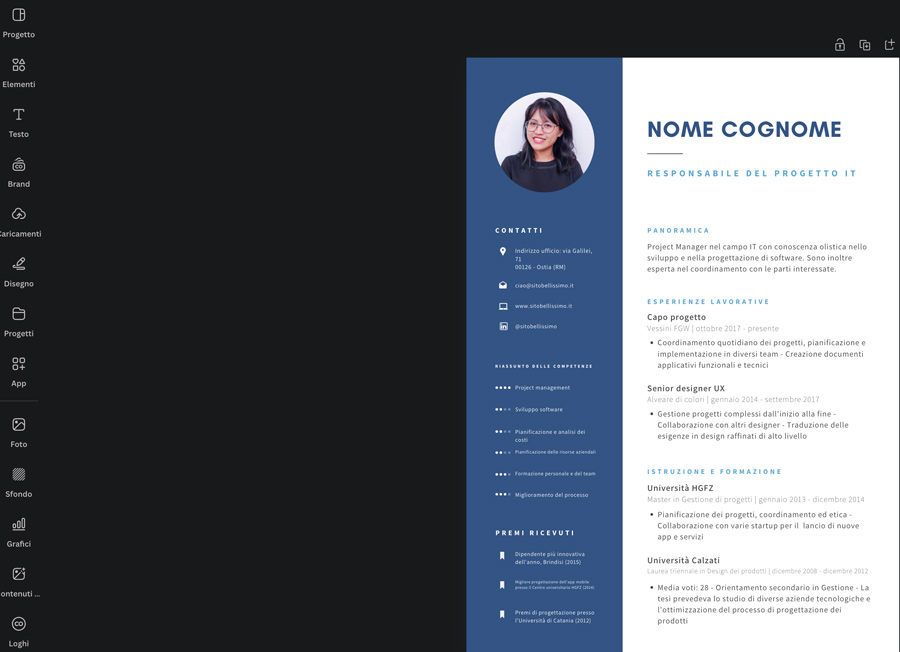
If you work in HR, you may need to collect candidates’ résumés, and you might prefer not to use a standard format but ask candidates to fill in a template you’ve designed because it works better for you and your team.
Canva also lets you create résumés, again with plenty of templates and features to choose from.
My advice is to create a simple, minimal, clean, and effective template.
Here’s how:
- select style, theme, features, and possibly color (perhaps based on your company’s brand colors)
- leave the photo area empty for candidates to fill in
- keep the sections and fields you think will help you understand candidates’ potential
- delete the parts you don’t need
Remember that you can always move, delete, adjust, or add elements as you like, including:
- backgrounds
- images
- charts
- logos
Canva for mind maps
Mind maps help clarify key points and visualize complex concepts or workflows, making them easier to understand and remember.
Companies often use them to:
- highlight tasks
- optimize workflows
- reorganize and group data
- focus on the project as a whole, not just individual parts
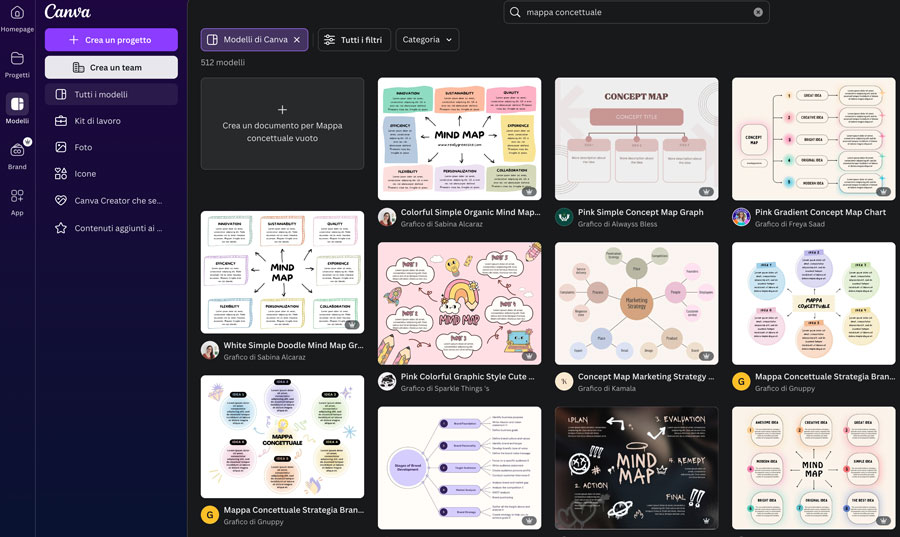
To create mind maps in Canva:
- type “mind map” in the search bar at the top
- choose a category from the drop-down menu (optional)
- pick the template that suits you best
- start working on it, adding, removing, and expanding
I use Canva mind maps a lot, for example, to present work blocks and workflows and to structure my online course on content marketing and conversion copywriting, so I always have the logic in front of me and an overview of the project.
Canva for business cards
Many people say business cards are no longer needed “because there’s LinkedIn,” but I promise you they still matter. Think of trade shows, conferences, and major events. When you meet a potential client who’s interested in your products or services, you can’t just say, “Go to LinkedIn, search for my name, and send me a connection request”:
- it’s rude
- they’ll never remember your name. Think of how many people they meet!
A professional business card is the best showcase for your personal brand.
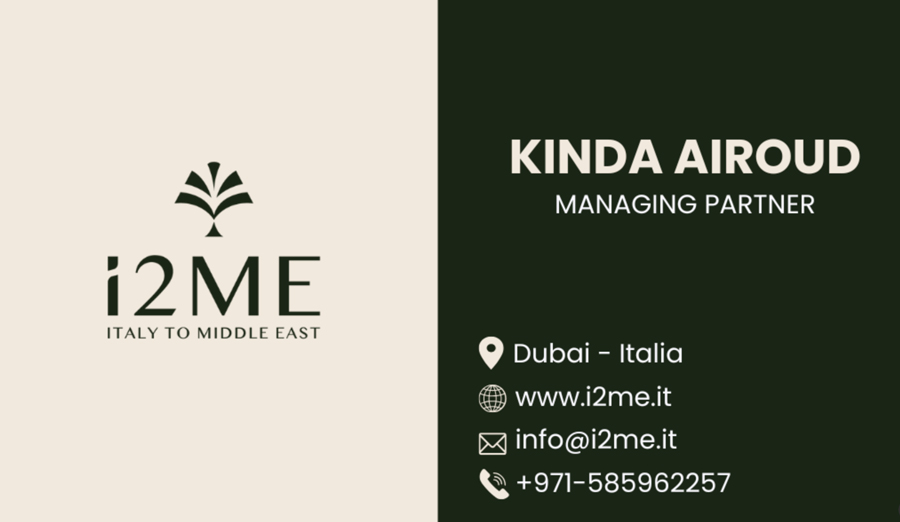
In Canva, making business cards, front and back, is quick and easy: once you’ve chosen a template, you can change the colors to match your brand, choose your brand font, and add icons or elements that matter for your business.
For example, here’s a business card I created for a business partner, with whom (along with another partner) I launched a business development project for Italian companies that want to invest in the Middle East, such as Dubai (and beyond!):
Canva for flyers
If your company invests not only in digital marketing but also in traditional offline marketing, you’ll probably need flyers too, especially if you’re a local business.
For example, one of the best ways a children’s karate club in my town gets sign-ups (and therefore customers) is word of mouth through flyers.
But be careful: you can’t expect a flyer to work as a marketing tool if you make it in Word, use Calibri as your font, and print it in bright neon pink.
Flyers play an important role in a company’s marketing and communication too: besides conveying a clear message, they should include brand fonts and colors, the logo, and a specific call to action (such as “Book a free trial class by calling … [phone number]”).
To make your flyer in Canva:
- select “Templates” from the left-hand menu
- choose “Marketing”
- click “Flyers”
You’ll be spoiled for choice among templates you can customize however you like.
Canva for brochures
Like business cards, brochures are a valuable marketing tool for being remembered by potential customers: a brochure is the leaflet that stays on the desk.
To create your brochure, follow the steps above for flyers, but select “Brochures” under “Marketing.”
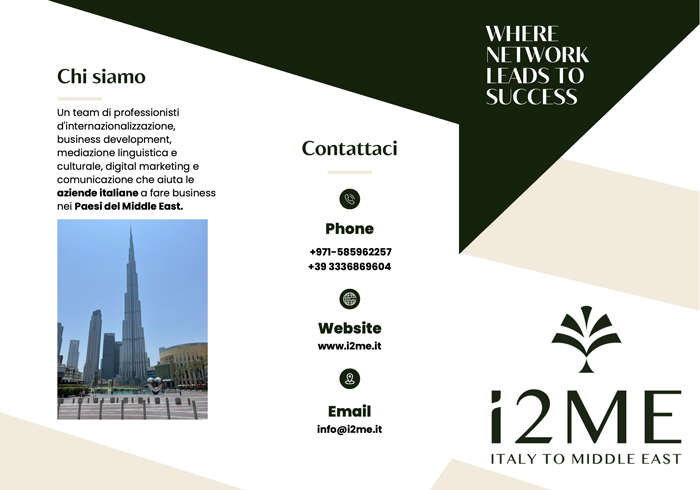
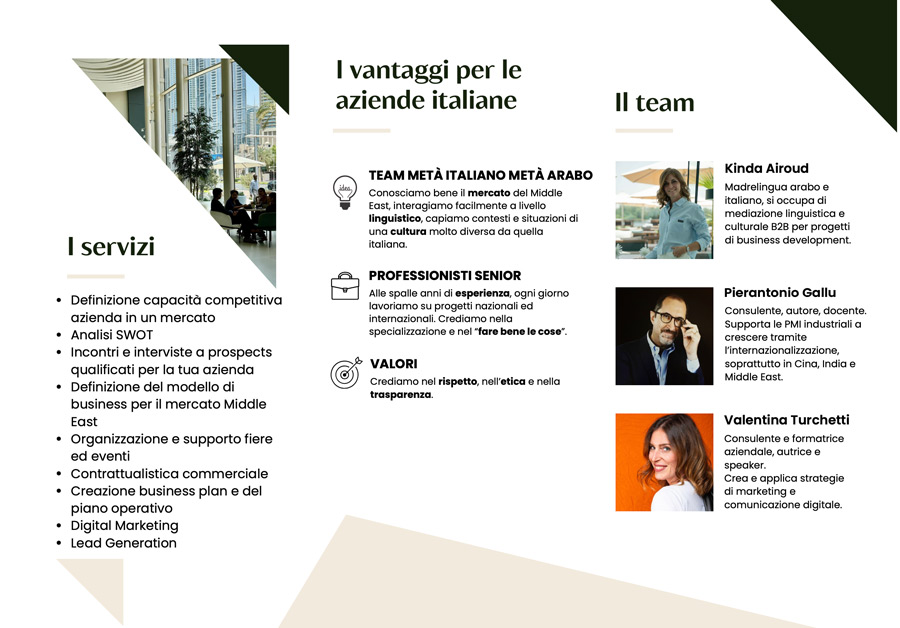
I created this brochure in Canva Pro for the Middle East startup project I mentioned earlier. The feedback I received (I asked for it, since I’m not a designer!) was: very professional, clear, and thorough.
Canva and artificial intelligence
Artificial intelligence has come to Canva too. With AI, you can:
- generate images from scratch
- generate videos
- generate written content, such as letters, social media posts, social bios, and so on
It works just like ChatGPT and similar tools: write the prompt (as precise as possible) and you’ll get the output.
6 practical tips for using Canva
Here are six tips to get the most out of Canva. They’ll probably answer some of the questions you had while reading this article 😉
How to add fonts in Canva
In Canva, you can choose the font that best fits your message, and above all your brand.
In Canva Pro, select “Brand” from the left-hand menu, then click “Brand Kit” and “Add new.” You’ll get an area dedicated to your brand, where you can add your brand fonts, colors, and logo.
Under “Fonts,” click “Upload a font” and upload the brand font you downloaded earlier.
How to add music in Canva
Imagine you need to create an Instagram post with music. In Canva:
- open your project
- from the left-hand menu, choose the app with the music note icon
- choose style, mood, and length
How to add a background in Canva
You can add a solid color, an image, or a video as a background.
To add a background in Canva:
- open the project
- click “Background” in the left-hand menu
- choose the background you want: a solid color, an image from the templates, or a special texture
How to save a project in Canva
Once you’re happy with your project, click “Share” in the top right, open the drop-down menu, choose “Download” or save it to a destination such as your computer or Google Drive.
At this step, you can also get a link to share your work with someone else.
How to print from Canva
If you want to print a project on your own printer, just download the file as a PNG or PDF and print it.
If you’d rather use Canva’s print service, once your project is finished, click “Share” and choose “Print with Canva” (the delivery truck icon). Select what you need to print and all the options (paper type, print size, quantity), double-check by downloading the PDF, then complete the purchase directly on the platform.
Printing with Canva is very fast and convenient!
How to delete a Canva account
Nothing could be simpler:
- click the Settings icon in the top-right menu, next to your profile picture
- choose “Login & security” from the left-hand menu
- click “Delete account”
- confirm the deletion
Canva or PowerPoint: which should you choose?
A common dilemma: should I use Canva or PowerPoint for my presentations?
There’s no one-size-fits-all answer. It depends on:
- how comfortable you are with design
- the audience you’ll show the presentation to
- how much time you have to create it
Let me explain.
If you’re preparing a report for your manager, a few simple, clean PowerPoint slides will probably be easier for you (and for whoever reads the data). If the report will then be reviewed by senior management or the CEO, it may be worth enriching it and making it more engaging with Canva.
There’s no doubt that Canva is a complete and very effective tool for creating visual content: it’s almost always the best choice.
Canva or Prezi: which is better?
Another dilemma: Canva or Prezi, since the two tools are competitors?
They’re two fairly similar platforms for creating graphics and videos. Both serve not only companies and freelancers but also schools and education, and both offer AI features.
The main difference, and one of Canva’s biggest advantages over Prezi, is that Canva offers many more features even in its free version, from the number of templates to the ability to export projects in more formats.
No doubt about it: Canva wins!

Valentina Turchetti
Co-founder of YourDigitalWeb
Co-founder of YourDigitalWeb, she works on digital strategy, lead generation and communication for companies. She speaks at marketing events and talks, from TTG to Social Media Strategies.
One click and, when you search for SEO, AI and marketing, our articles will show up more often in Google’s Top Stories.