Table of contents 7 sections
- What the policy says and what the November FAQs add
- Three ways a site takes over the Back button
- The Chrome test to run on every page template
- Ads and widgets: the script may not be yours, the risk is
- Changing the history isn’t banned: where the line is
- If a manual action shows up in Search Console
- Technical references
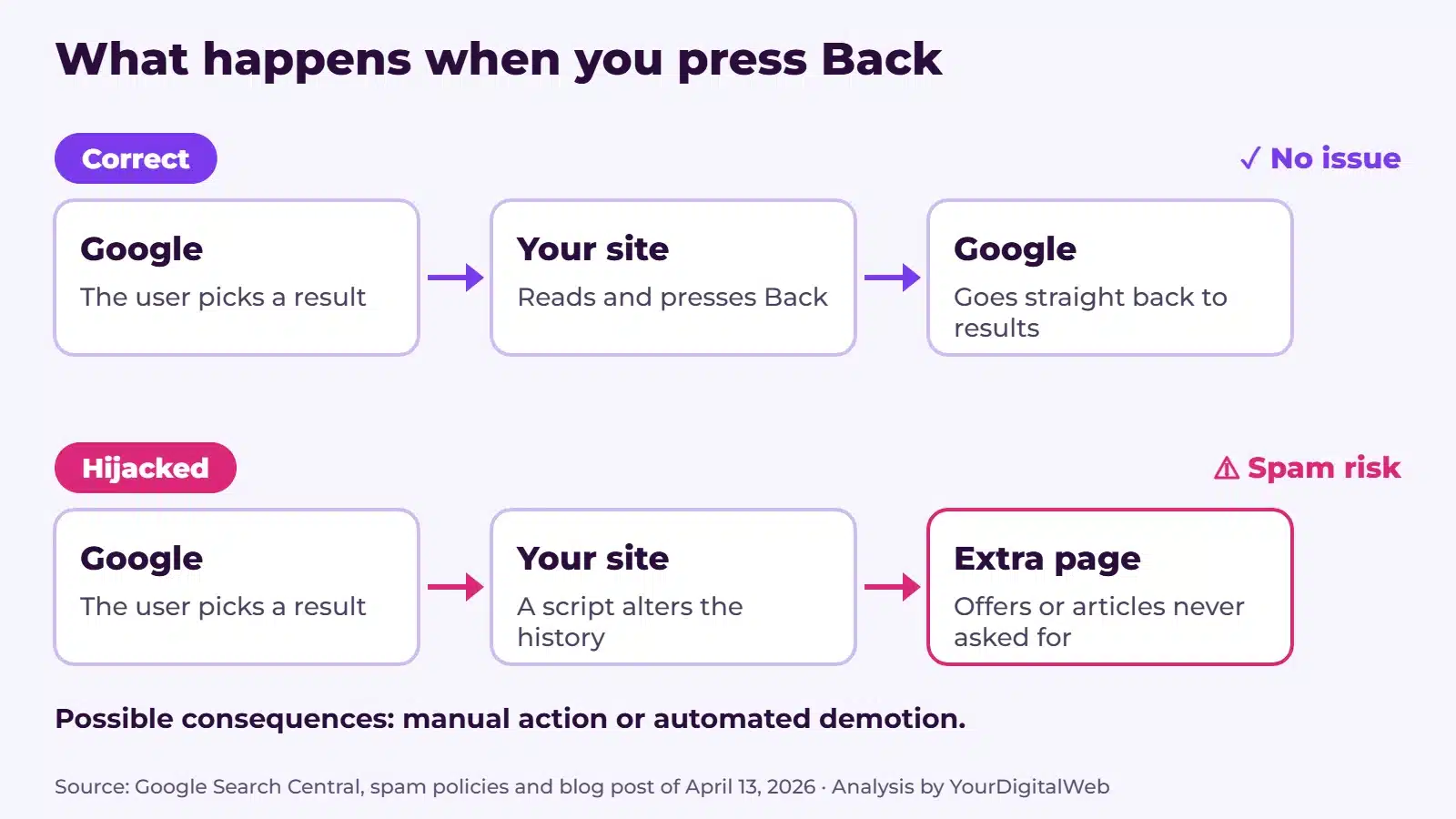
A reader lands on a local news article from Discover, reads two paragraphs and presses Back to return to the feed. Instead of the feed, a page of “articles you might like” appears. Back again, and another one shows up. On the third try the reader closes the tab. For the site owner, that sequence is worth a few extra page views; for Google, since June 15, 2026, it is spam.
On November 23, 2026, Google added an FAQ section to its back button hijacking policy, which became part of the spam policies for Google web search last spring. The answers settle three points many sites assumed were safe: third-party ad scripts are no excuse, Discover is covered, and what counts is behavior in the browser, not where the visitor came from.
Below we explain what the policy says, which technical patterns break it and the Chrome test we use to spot the problem in a few minutes, even when the script isn’t yours.
What the policy says and what the November FAQs add
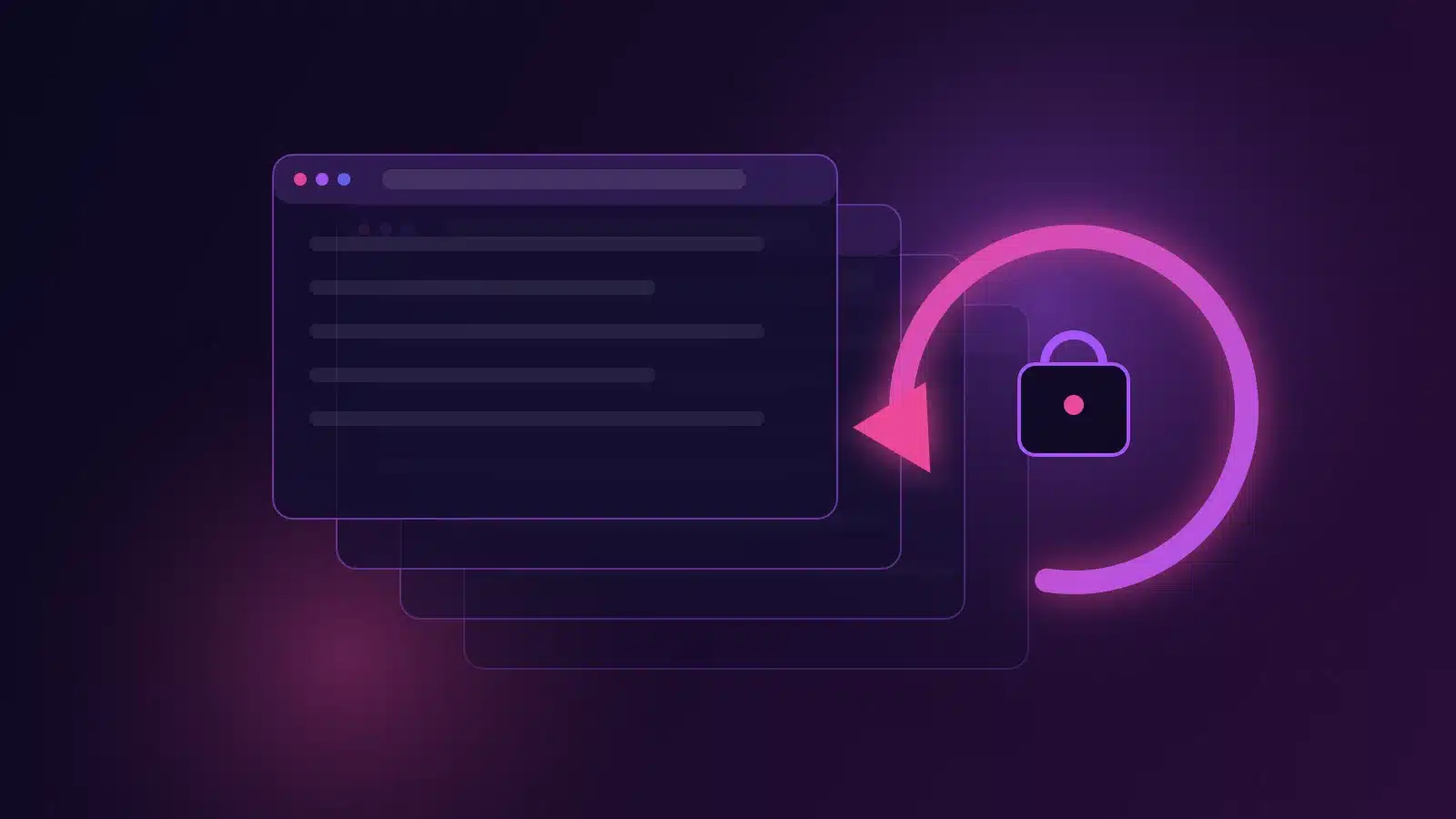
On April 13, 2026, Google announced on the Search Central blog that back button hijacking was being added to the “malicious practices” section of its spam policies, with enforcement starting on June 15, 2026. The official definition: it happens when a site interferes with user browser navigation by manipulating the browser history or other functionalities, preventing users from using their back button to immediately get back to the page they came from.
Google lists two possible consequences: manual spam actions or automated demotions, both of which can affect how a site performs in Search. In the April post Google also pointed out that inserting deceptive pages into a user’s browser history already went against Google Search Essentials: the change was making it an explicit violation, with a name and a definition.
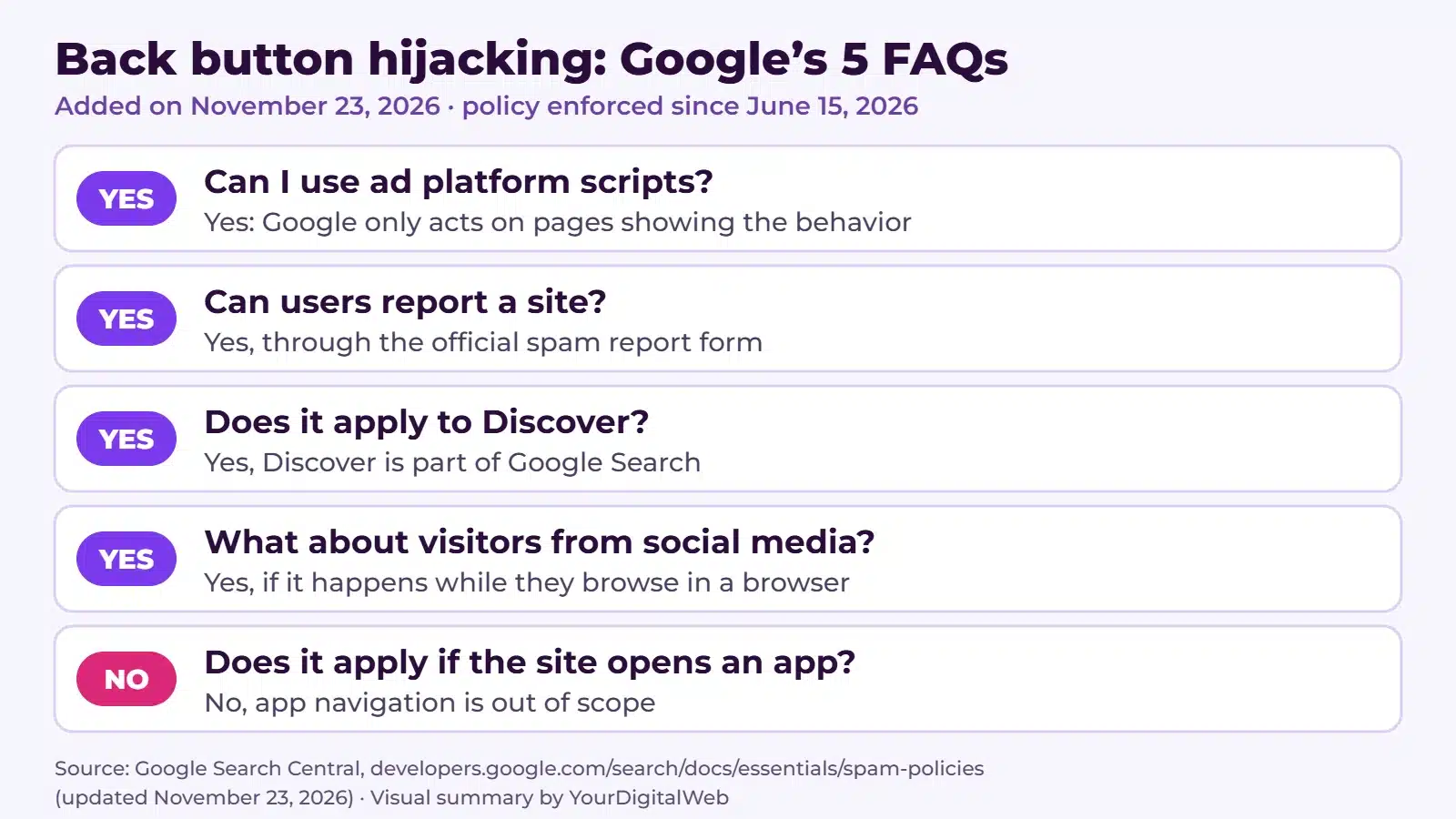
The answers added on November 23, in short:
- Ad platform code: sites can keep using it; Google only acts on pages that exhibit the behavior.
- Reports: anyone can report a site through the official spam report form.
- Discover: it is part of Google Search, so the policy applies there too.
- Visitors who don’t come from Google: if the hijacking happens while the user is browsing in a browser, the policy applies even to visitors arriving from social media.
- External apps: opening an app and navigating inside it are outside the scope of the policy.
Read together, the second and fourth answers carry the most weight. A competitor or an annoyed reader can report the site, and the problem doesn’t have to show up when arriving from Google: it is enough that it happens in a browser.
Three ways a site takes over the Back button
A tab’s history is changed through the browser’s History API, mainly history.pushState() and history.replaceState(), while going back is intercepted with the popstate event. These are legitimate, widely used tools found on virtually every modern website. The problem starts when they are used to trap the user.
1. The ghost history entry
As soon as the page loads, a script adds an entry to the history without the user doing anything. When the user presses Back, the browser “returns” to the ghost entry and the script shows something else: a list of articles, an offer, an ad. The bare-bones pattern fits in a few lines:
history.pushState(null, '', location.href);
window.addEventListener('popstate', function () {
  location.href = '/todays-deals/';
});
Lines like these can hide in an exit-intent plugin, in a theme bought years ago or in a script loaded by a vendor. Site owners have often never seen them.
2. The exit page of content recommendation widgets
Some recommendation widgets and ad platforms offer features that show a page of content when the user tries to leave with Back. They are often switched on from the vendor’s dashboard, not in the site’s code, so nobody in the newsroom knows they are active. This is the case Google’s first FAQ addresses, and it is the trickiest one precisely because it is invisible to whoever works in the CMS.
3. The redirect loop
The user lands on a URL that immediately sends them to a second URL through JavaScript. If the first page stays in the history and fires the redirect again, every press of Back pushes the user forward. It can happen without bad intentions, for example after a migration done with client-side redirects instead of server-side ones. The policy looks at how the page behaves, not at intent, so it is worth fixing anyway.
The Chrome test to run on every page template
You don’t need a paid tool. Chrome, a clean window and a few minutes per page template are enough: home page, article, product page, category page, campaign landing pages.
- Start from Google. Open an incognito window, search for the site and click a result. That way the previous page in the history is the results page, just as it is for a real user.
- Don’t touch anything and press Back once. You should land back on the results. If anything else appears, you have found the problem. Repeat after scrolling and after accepting the cookie banner: many ad scripts only load after consent.
- Count the history entries. Open DevTools (F12), go to the Console tab and type
history.lengthas soon as you land on the page. Wait a few seconds without clicking and type it again. If the number goes up on its own, something is adding entries to the history: eachpushStatecall increases it by one. - See who is listening to the Back button. Still in the Console, type
getEventListeners(window).popstate. This command only exists in the DevTools Console and won’t work inside page scripts. Each item in the list is a script reacting to Back; the file reference tells you which one. - Search the loaded code. With Ctrl+Shift+F (Cmd+Option+F on Mac) DevTools searches every file on the page, third-party ones included. Look for
pushState,replaceStateandpopstate, then check which domain each file belongs to. - Repeat on a smartphone. Ad platforms can serve different setups on mobile. DevTools device emulation helps, but a real phone is still the most reliable check.
A note for sites built as single page applications (React, Vue, Angular, many headless e-commerce stores): you will certainly find pushState in the code, because that is how the router changes the URL. That is not a problem in itself. The real verdict always comes from the hands-on test in step 2.
Ads and widgets: the script may not be yours, the risk is
The first FAQ sounds reassuring, because Google doesn’t ban code from ad platforms. But the key phrase is the other half: it acts on pages that exhibit the behavior. If a vendor’s script hijacks the Back button, the page at risk is yours.
Our advice, especially for publishers and ad-funded sites, is to treat this policy as a contract clause rather than a technical footnote. Ask every advertising and content recommendation vendor, in writing, whether they have features acting on the Back button or on page exit, and have them switched off. A few extra page views are not worth the risk of losing visibility on Discover, which for many publishers is a critical channel.
For e-commerce, the typical case is different: exit popups with discount codes installed by marketing apps or plugins. A popup that appears when the mouse leaves the window doesn’t touch the history; one that fires by intercepting Back does. For this policy, that is the whole difference, and it is worth checking how yours is set up.
Changing the history isn’t banned: where the line is
The policy doesn’t say pushState is forbidden. It says users must be able to go straight back to the page they came from. Google hasn’t published a list of allowed uses, so the table below is our reading of the most common cases, based on the text of the policy and the FAQs.
| Situation | What happens when pressing Back | Our assessment |
|---|---|---|
| E-commerce category filters that update the URL | Goes back to the previous filter, then to the referring page | Acceptable: users retrace steps they actually took |
| Gallery or tab that opens with its own URL | Closes the gallery and returns to the page | Acceptable, as long as no entries are added on every load |
| Entry added on load with no interaction | Shows a page the user never visited | Remove it: this is the pattern Google describes |
| “Recommended articles” page on exit | Leads to content nobody asked for | Remove it, even if the vendor switched it on |
| JavaScript redirect loop | Back pushes the user forward | Fix it with server-side redirects |
| Link that opens the site’s app | The user stays in the app | Out of scope, according to the FAQs |
If a manual action shows up in Search Console
Manual actions appear in the Manual actions report in Search Console and are also sent to the message center. The path Google describes is straightforward: remove or disable the code responsible, make sure the behavior is gone on every page template, then submit a reconsideration request from the report. Automated demotions, on the other hand, come with no warning: you only notice them as a drop in performance. That is why the test should be done before, not after.
In a reconsideration request, precision pays off: which script, from which vendor, on which pages, what was switched off and when. Timing matters too. In December the core update Google announced in advance is due: if traffic drops in those weeks, separating the causes will be much easier with a site that is already clean on this front.
If you are rebuilding your site, add the Back button test to pre-launch QA alongside the other technical checks; we cover this in our website design page. If you want an outside review of a live site, we can start with a free analysis or work on it as part of our SEO consulting.
Technical references
- Google Search Central: Spam policies for Google web search
- Google Search Central Blog: Introducing a new spam policy for “back button hijacking” (April 13, 2026)
- Google Search Central: Latest Google Search documentation updates
- Google Search Central: Report spam, phishing, or malware
- Search Console Help: Manual actions report
- Chrome for Developers: Console Utilities API reference
- MDN Web Docs: History API

Marco Maltraversi
CEO and founder of YourDigitalWeb
He founded YourDigitalWeb in 2009 and is an SEO and GEO consultant with a background in software engineering. He has written books on SEO and artificial intelligence, including “Generative SEO” (Edizioni LSWR), teaches in university programs and runs the DeepSEO training program. He has spoken at SMAU, Web Marketing Festival and Search Tech.
One click and, when you search for SEO, AI and marketing, our articles will show up more often in Google’s Top Stories.